Build and Crush Controls
PC keybindings, mobile touch layout, build mode, and driving — all inputs in one place.
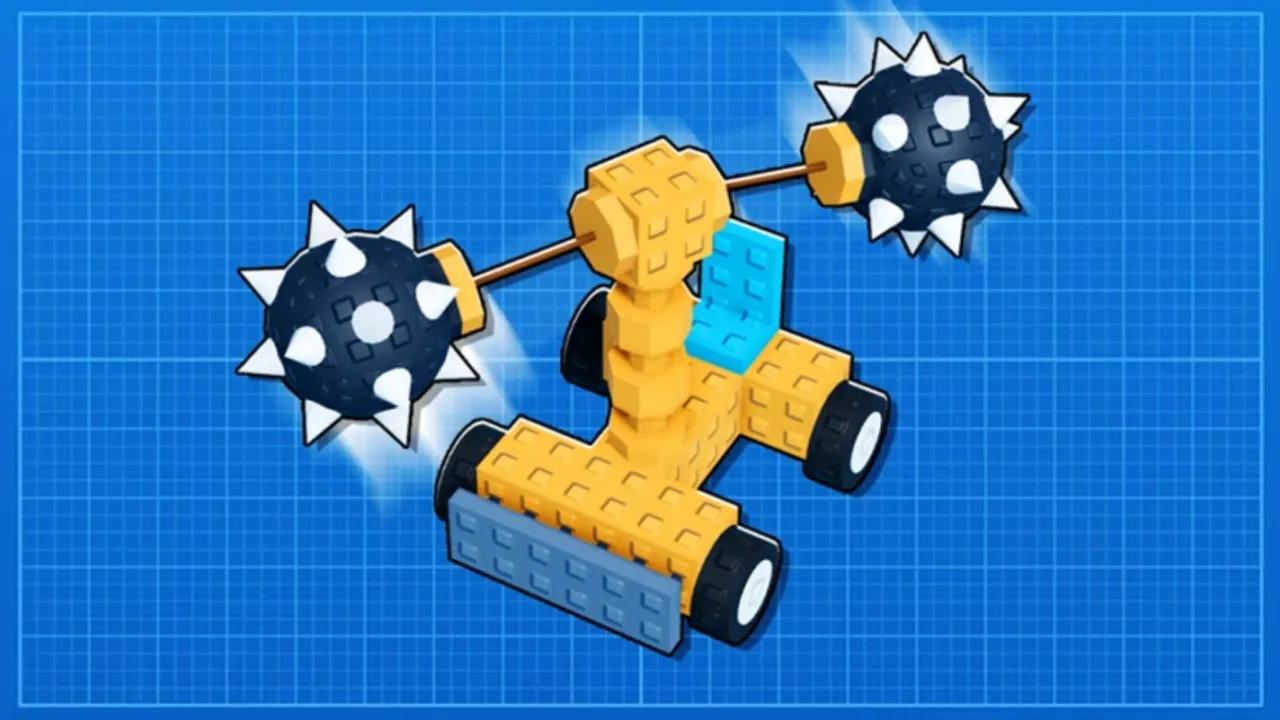
Comfortable controls separate a fun Build and Crush session from a frustrating one. Unsquared’s Roblox experience uses standard Roblox movement plus custom build mode, garage UI, and vehicle driving layers. Inputs differ between PC (keyboard and mouse) and mobile (touch), and some actions only appear when you stand near stations like Garage Research, crate plants, or the Blueprints machine.
Read Getting Started if you have not finished the tutorial, then return here when you need precise bindings. For what those systems do mechanically, see How to Play, Garage Research, and Destroy the Map.
Roblox base controls (all platforms)
These come from the Roblox engine and work everywhere in the experience:
| Action | PC | Mobile |
|---|---|---|
| Move | W A S D | Left virtual stick |
| Jump | Space | Jump button |
| Camera look | Hold right mouse | Drag right side of screen |
| Zoom camera | Scroll wheel | Pinch |
| Menu / Roblox overlay | Esc | Roblox menu icon |
| Interact with prompts | E or click prompt | Tap prompt |
On PC, Shift often toggles sprint where the map allows free avatar movement. In drive mode, movement keys usually transfer to the vehicle — your avatar sits inside the build.
Build mode in the garage
Garage construction is the deepest control layer. Enter build mode at your plot (exact button label varies by update — look for Build, Edit, or a wrench icon in the top bar).
PC build controls
- Left click — select part or place if holding a piece from inventory.
- Right click (or R) — rotate held part before placement.
- Q / E — roll or yaw rotation on some part types.
- Delete / Backspace — remove selected part.
- Ctrl + Z — undo last placement when supported.
- Middle mouse drag — orbit camera around your creation.
- Scroll wheel — zoom; helpful for aligning joints on tall builds.
Use slow, small rotations when attaching drills or missiles — misaligned weapons waste damage on the map. If a part refuses to snap, zoom in; many pieces have hidden connector faces.
Mobile build controls
- Tap inventory icon to pick a part category.
- Drag from palette to place; two-finger twist may rotate depending on UI version.
- Pinch to zoom; two-finger drag to pan camera.
- Long press a placed part for delete or duplicate options when available.
Mobile builders benefit from simpler first vehicles — see Best Builds for low-part-count designs that still crush effectively.
Driving and weapon controls
When you spawn a vehicle:
| Action | PC | Mobile |
|---|---|---|
| Accelerate / brake | W / S | Forward / back on drive stick |
| Steer | A / D | Left / right on drive stick |
| Activate tool or weapon | Left click or number keys | Fire button or tool icon |
| Exit vehicle | Jump or exit prompt | Exit button |
Weapon behavior depends on part type — drills need contact, missiles require aim, sweepers may auto-spin. Test in an empty map corner before racing other players to landmarks (Destroy the Map).
Physics means handbrake turns and jumps can flip lightweight cars. Lower your center of mass or add outrigger wheels if you keep rolling over.
Camera tips for builders and drivers
- Orbit while building to inspect joints from every angle.
- First-person is rarely ideal for driving wide vehicles; stay in third person unless sniping with ranged tools.
- Reset camera if Roblox clips inside your chassis — open settings and toggle camera mode, or respawn the build.
UI buttons you should know
Beyond build and drive, the HUD includes context buttons:
- Garage Research — opens the tech tree when standing at the station (Garage Research guide).
- Crate plant plots — plant, water, or harvest via plot prompts (Crate Plants).
- Blueprints terminal — browse, purchase, publish (Blueprints).
- Save / Load — persist layouts; save before importing blueprints.
- Codes — some experiences embed code redemption in a menu; you can also redeem on our Codes page before joining.
Early access UI shuffles occasionally — if a button moves, check the patch notes in Updates or the in-game help panel.
Rebinding and accessibility
Roblox Settings → Keyboard (PC) lets you remap global bindings like jump. Build and Crush-specific keys may not all appear there if they are scripted inside the experience. On mobile, increase touch button size in Roblox settings if you mis-tap fire during crush runs.
Lower graphics if driving stutters — physics simulation spikes when large map chunks collapse on eight-player servers.
Control checklist before your first crush run
- Confirm WASD moves your test car forward and backward.
- Verify weapon fire works on a small prop.
- Practice exiting the vehicle without deleting it.
- Learn where save lives in the garage menu.
- Skim How to Play so you know when to switch between avatar walking and drive mode.
Related guides
- Getting Started — day-one checklist
- How to Play — full gameplay loop
- Best Builds — simple vehicles for control practice
- Destroy the Map — combat and demolition timing
Frequently Asked Questions
Quick answers to the most common questions.
Does Build and Crush support controller input?
Roblox supports gamepads on PC and console where available. Build mode on controller can be slower than mouse; many players use keyboard and mouse for garage work and a controller for driving if bindings feel comfortable.
Why cannot I rotate parts on mobile?
Some parts rotate with a two-finger gesture or a dedicated rotate button after selection. Update Roblox to the latest version — older clients miss touch gestures Unsquared relies on.
How do I get out of build mode?
Tap or click the Build/Edit toggle again, or walk away from the plot if the experience auto-closes the editor. Save first so you do not lose unsaved placements.
My car steers backwards — is that a bug?
Usually the seat or wheel orientation is flipped. Rebuild with the seat facing forward relative to wheel direction, or mirror the chassis. Physics seats treat forward based on how the build was assembled.